
How To Fix Voice Bug In Hogwarts Legacy
Facing the robotic voice issue in Hogwarts Legacy? Don't worry! We have got you covered with some working fixes.

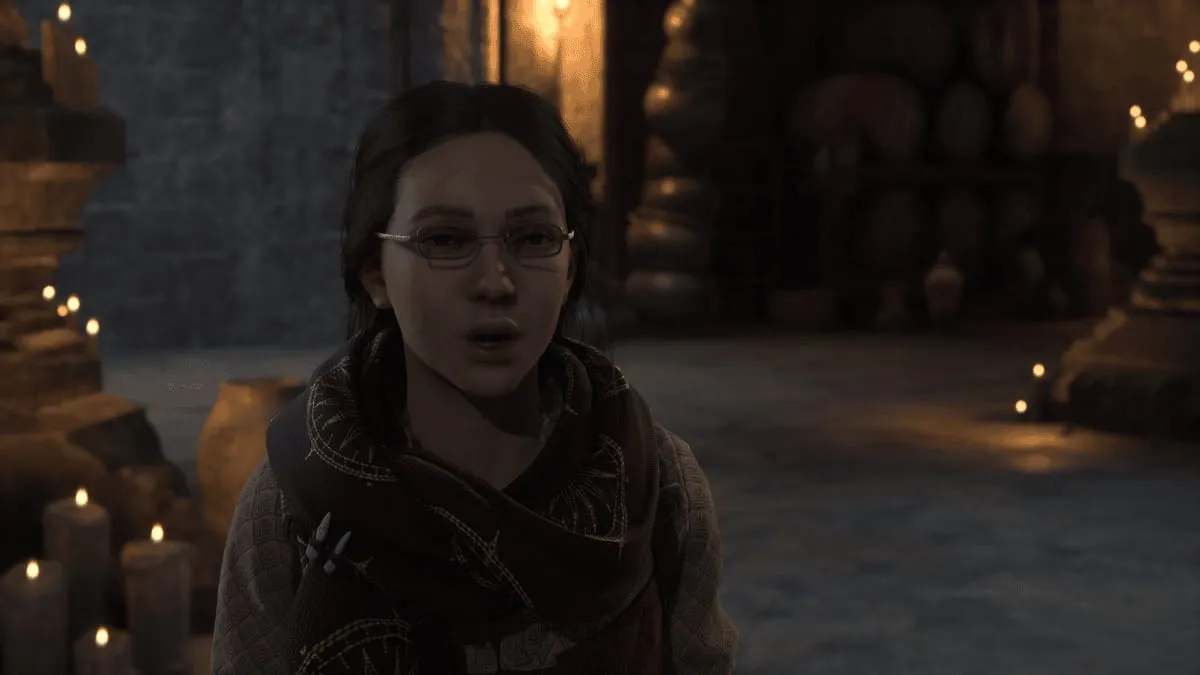
While Hogwarts Legacy is a masterpiece of a title, especially for Harry Potter fans, it is plagued with technical issues, including a voice bug that results in a substandard experience. Many Hogwarts Legacy players have reported their characters having a robotic voice, even though they selected a normal one during character creation. Keep reading our guide as we share working fixes you can apply to get rid of the voice bug in Hogwarts Legacy.
- Got bored with your character’s appearance? Here is how you can change your appearance in Hogwarts Legacy at any point in the game.
Disclaimer: While the creator of the Harry Potter franchise was not directly involved in the creation of the Hogwarts Legacy, their comments on social media around transgender people are hurtful and dangerous, given the size of their platform.
We’d implore you to read our explainer of the controversy so far and consider supporting trans rights charities where possible.
How To Fix Voice Bug In Hogwarts Legacy
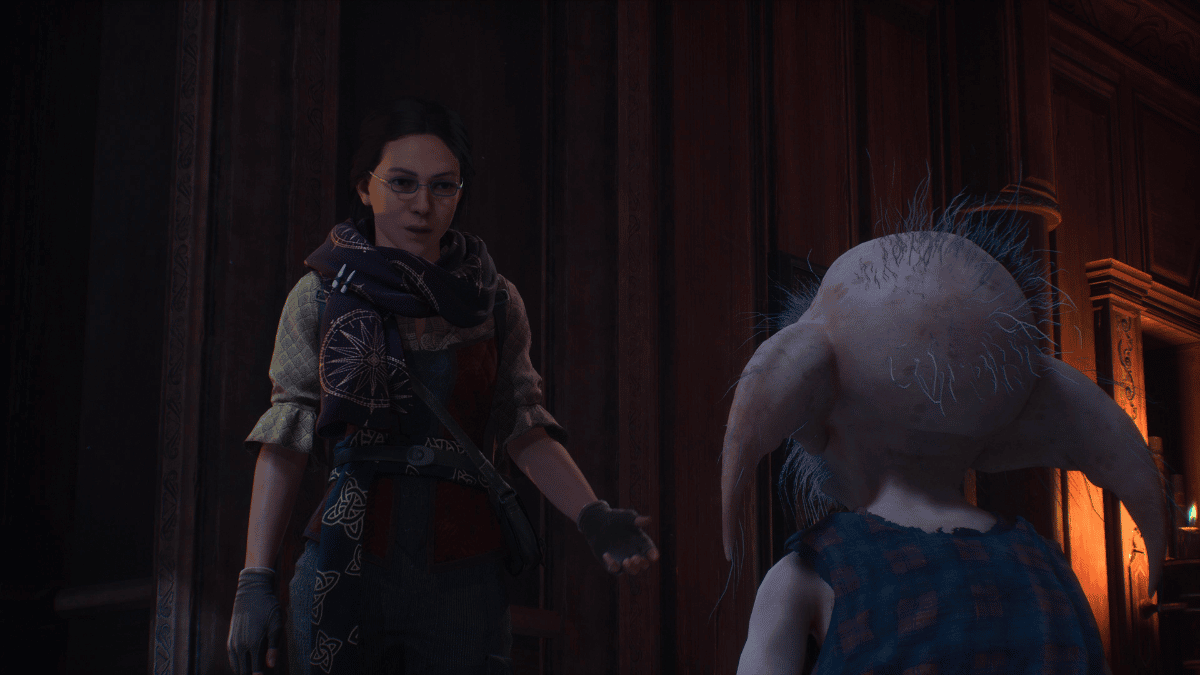
You can fix the voice bug in Hogwarts Legacy by tweaking the Pitch setting via Audio Options. Doing so will get rid of the robot-like sound that is annoying, mostly during cutscenes and character interactions.
- Are you looking for some Troll Bogeys to complete Professor Onai’s Assignment or to craft Invisibility Potions? Check out our Hogwarts Legacy Troll Bogeys location guide for more details.
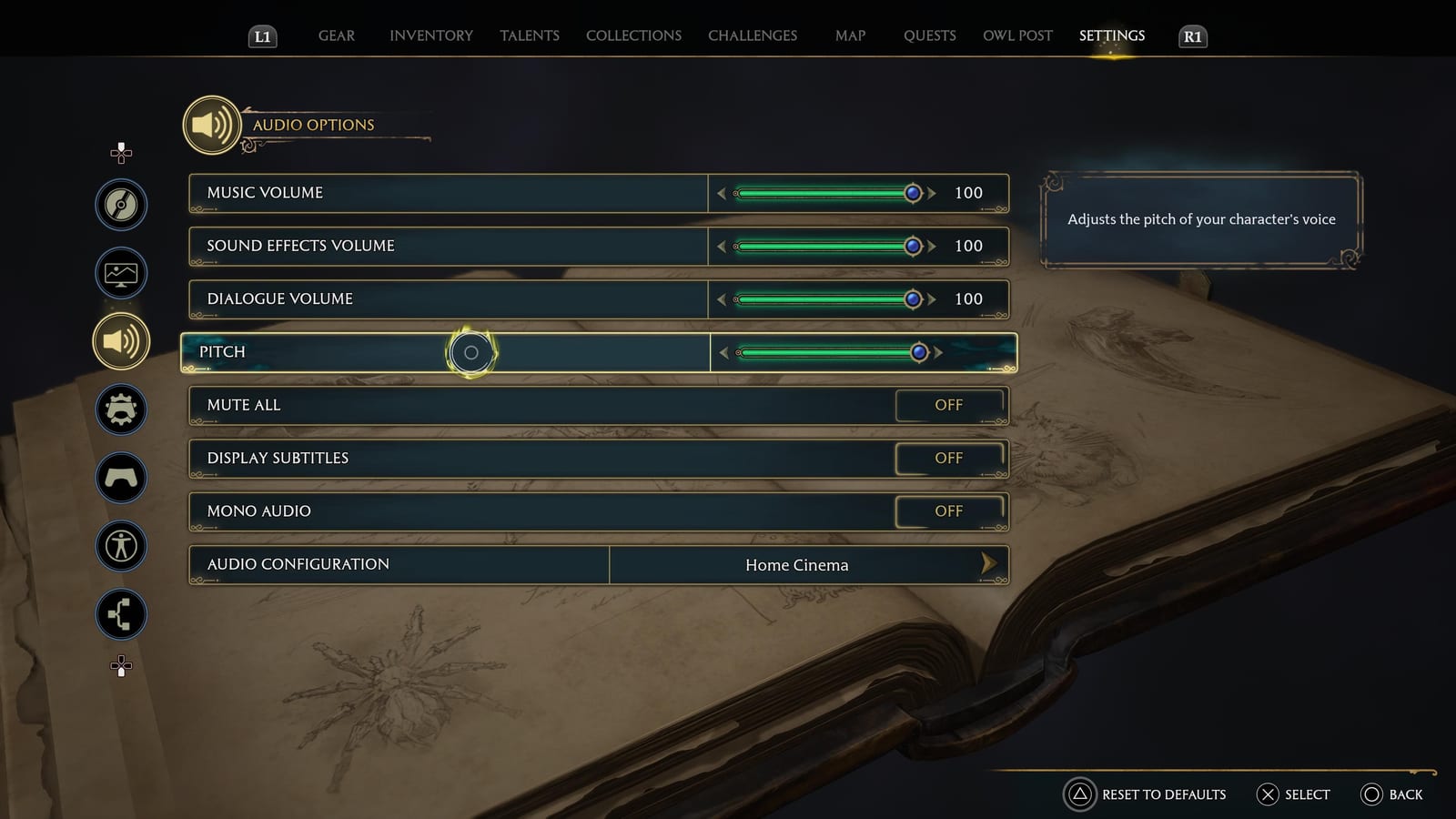
If you don’t know how to change your Pitch in Hogwarts Legacy, follow the below steps:
- Open the Hogwarts Legacy in-game Settings option.
- Select the Audio Options menu. [The third menu from the top]
- Navigate to the Pitch option.
- Use the Pitch Slider to adjust the pitch of your character’s voice.
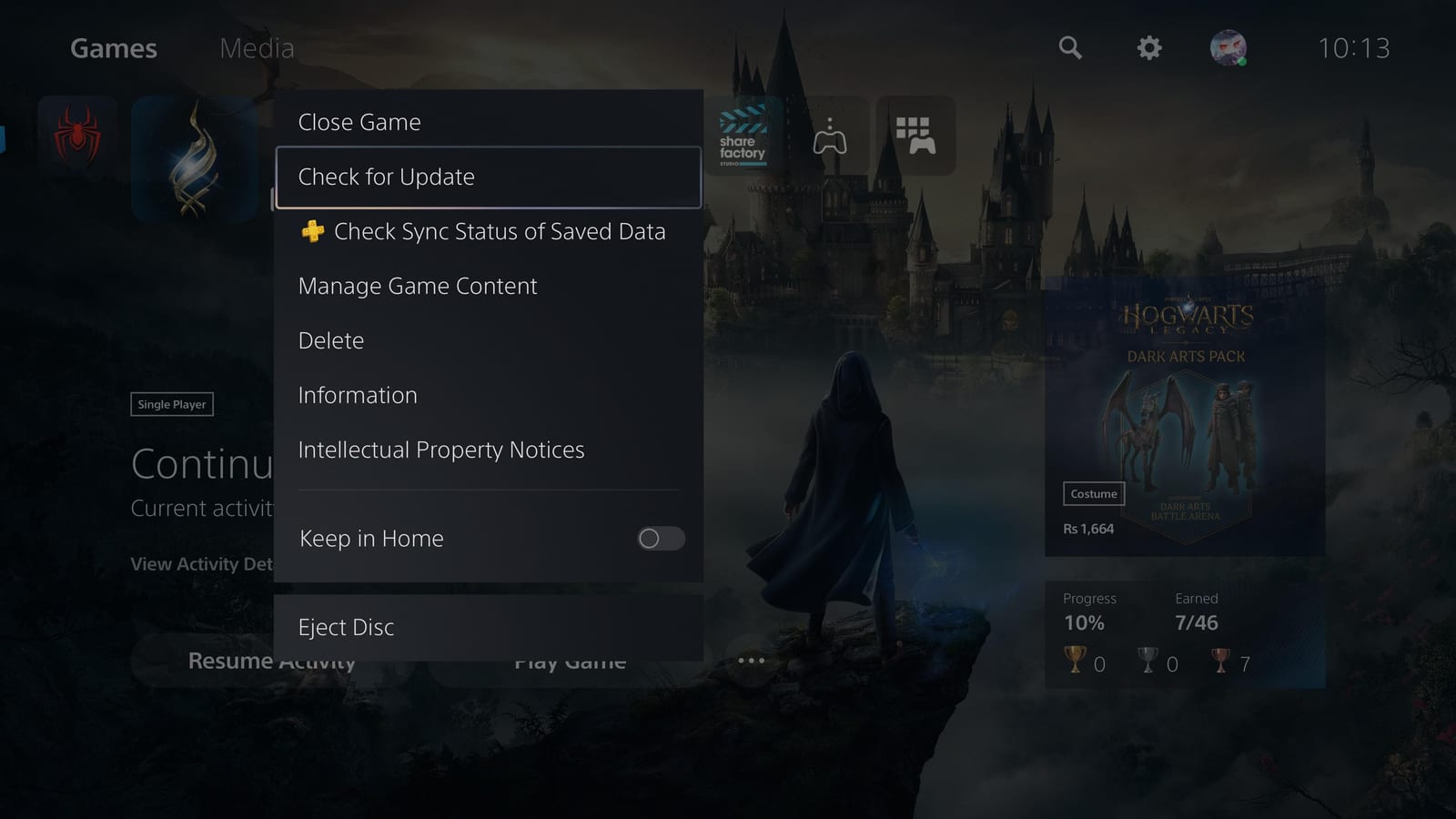
You can also use the “Reset to Defaults” option in the Audio Options menu in Hogwarts Legacy to fix the voice bug. And apart from that, we recommend you keep the game updated as the devs release updates primarily focused on fixing glitches, performance issues, crashes, and other things.
- Can’t get past locked doors? Check out our guide on how to get the Alohamora spell in Hogwarts Legacy.
If you are playing Hogwarts Legacy on PC, there are a few general troubleshooting steps that you can try to ensure the audio bug is, in fact, a glitch and not an erroneous audio setting.
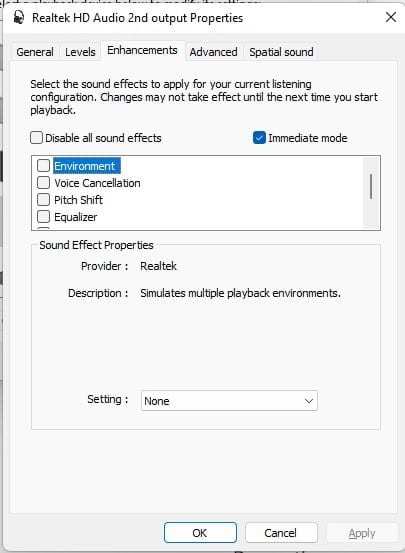
First, make sure Audio Enhancements are turned off for your audio output device. You can check that by following the below steps:
- Open Sound Settings
- Scroll down and click on “More sound settings.”
- Right-click on the device you use for audio output and select Properties.
- Navigate to the Enhancement tab.
- Check if any enhancements are enabled.
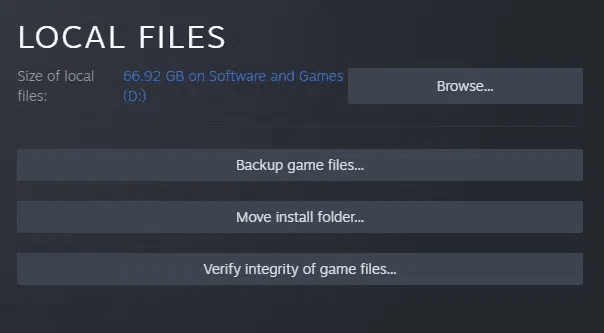
Next, you must verify the game files’ integrity to ensure no audio file is broken. If you have purchased the game on Steam, you can use the below steps:
- Open Steam
- Select Library
- Navigate to Hogwarts Legacy
- Right-click on the game and select the Properties option
- Next, select the Local Files tab
- Now, click on “Verify Integrity of Game Files.”
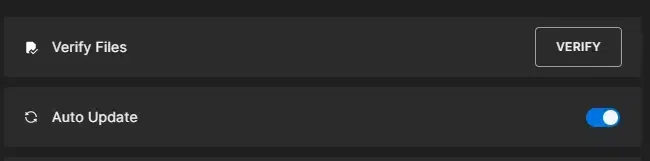
Players who have purchased Hogwarts Legacy via Epic Games Store can verify the game files’ integrity by:
- Open Library
- Navigate to Hogwarts Legacy
- Click on the three vertical dots
- Select Manage option
- Click on Verify Files
The above steps should fix any audio glitch, may it be the infamous robotic voice bug or any other in Hogwarts Legacy.
That concludes our guide on how to fix the voice bug in Hogwarts Legacy. For more on Hogwarts Legacy, keep reading The Games Cabin.
Related stories

5 best Marvel SNAP Conquest decks (August 2023): Darkhawk, Thanos Control, more
If you want to win against your opponent, these are the 5 best Marvel Snap Conquest decks so that you can overpower them and get the victory.
How to solve the Luminflux Pyxis puzzles in Honkai: Star Rail
If you're struggling with the Honkai: Star Rail Luminflux Pyxis puzzles, we're here to help. Check out our solutions for each day's puzzles!
ESO Dragonstar Arena: All rounds & loot
In this guide we'll rundown each round within the ESO Dragonstar Arena, as well as detail all the loot you can possibly get as a reward.